

TallyPrime GET API Integration Documentation
Follow the instructions and steps explained below to implement TallyPrime GET API Plugin to Pull/GET Data from TallyPrime software to Integrate with your ERP, CRM, Mobile App, Web App, SQL database and so on.
TallyPrime GET API Integration mainly requires 2 parties as below;
- Software Developer, Who can do the data integration programmatically
- TallyPrime User, Who understand the TallyPrime and Accounting
General Guidelines
-
- Unzip the plugin folder & copy “TallyPrime API Rel 4 & Above.tcp” file in your local TallyPrime application directory/folder.
- Use the .tcp file from the downloaded plugin folder depending upon TallyPrime version you are using i.e. TallyPrime release 4.0 & above or Tallyprime release 3.0 & below.
Configure TallyPrime GET API Plugin in your Tally
-
Local TDL Method
- Open TallyPrime > Press F1: Help
- Go to TDLs & Add-ons
- F4: Manage Local TDL’s > Load TCP file as shown in below snapshot
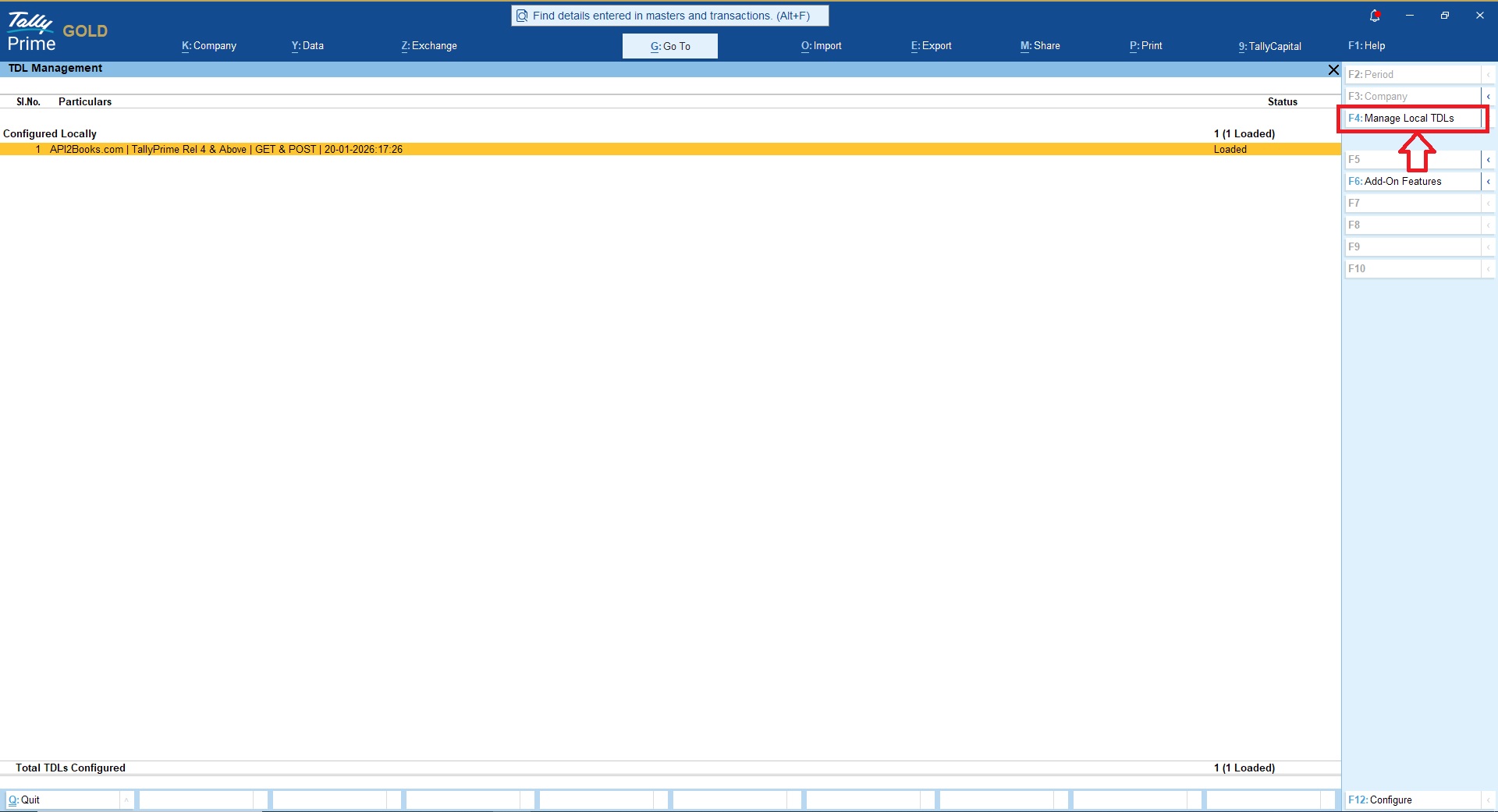
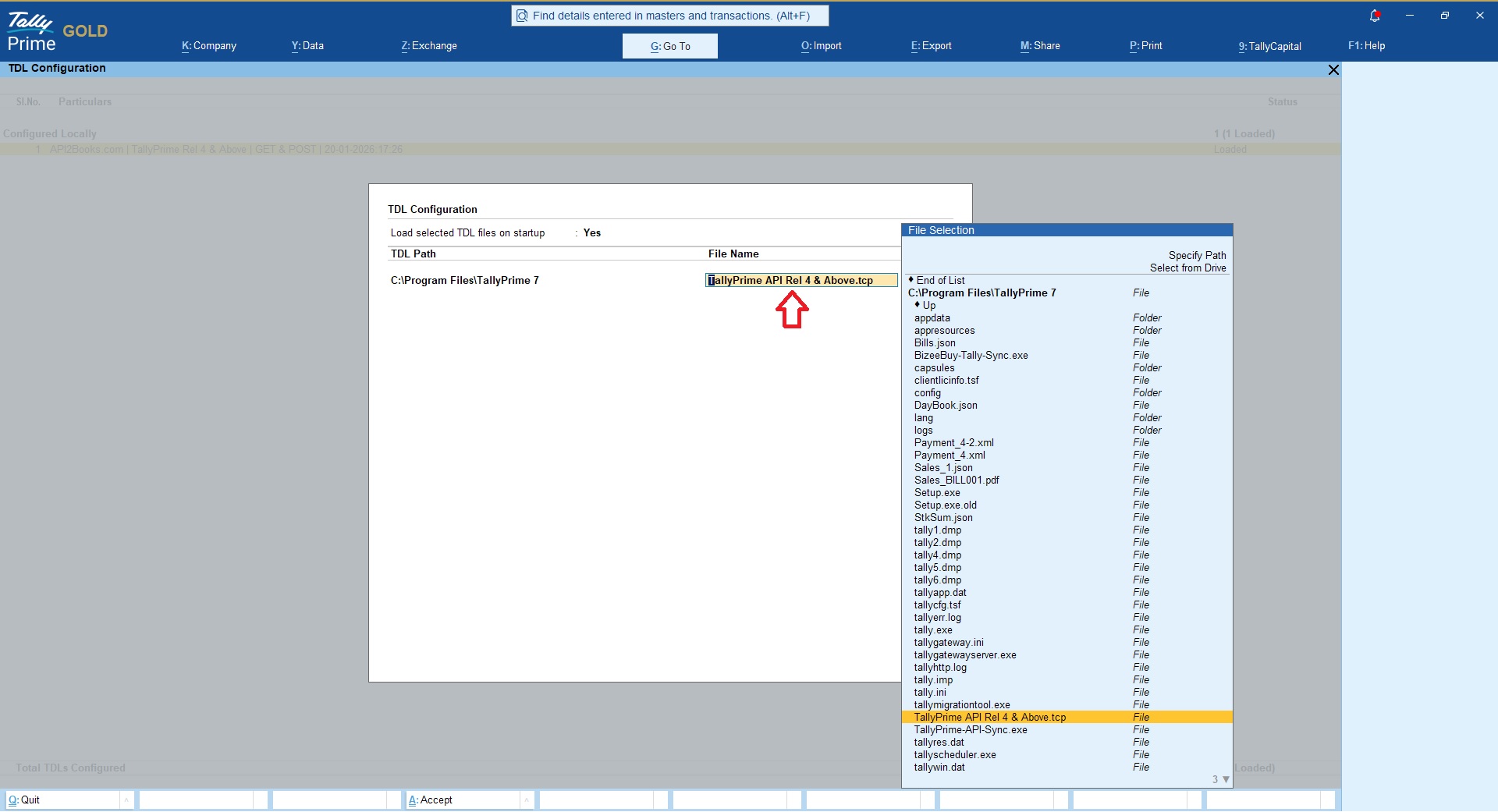
Make sure that .tcp file is loaded on all the computers where TallyPrime is being used else data won’t be uploaded.
-
Account TDL Method
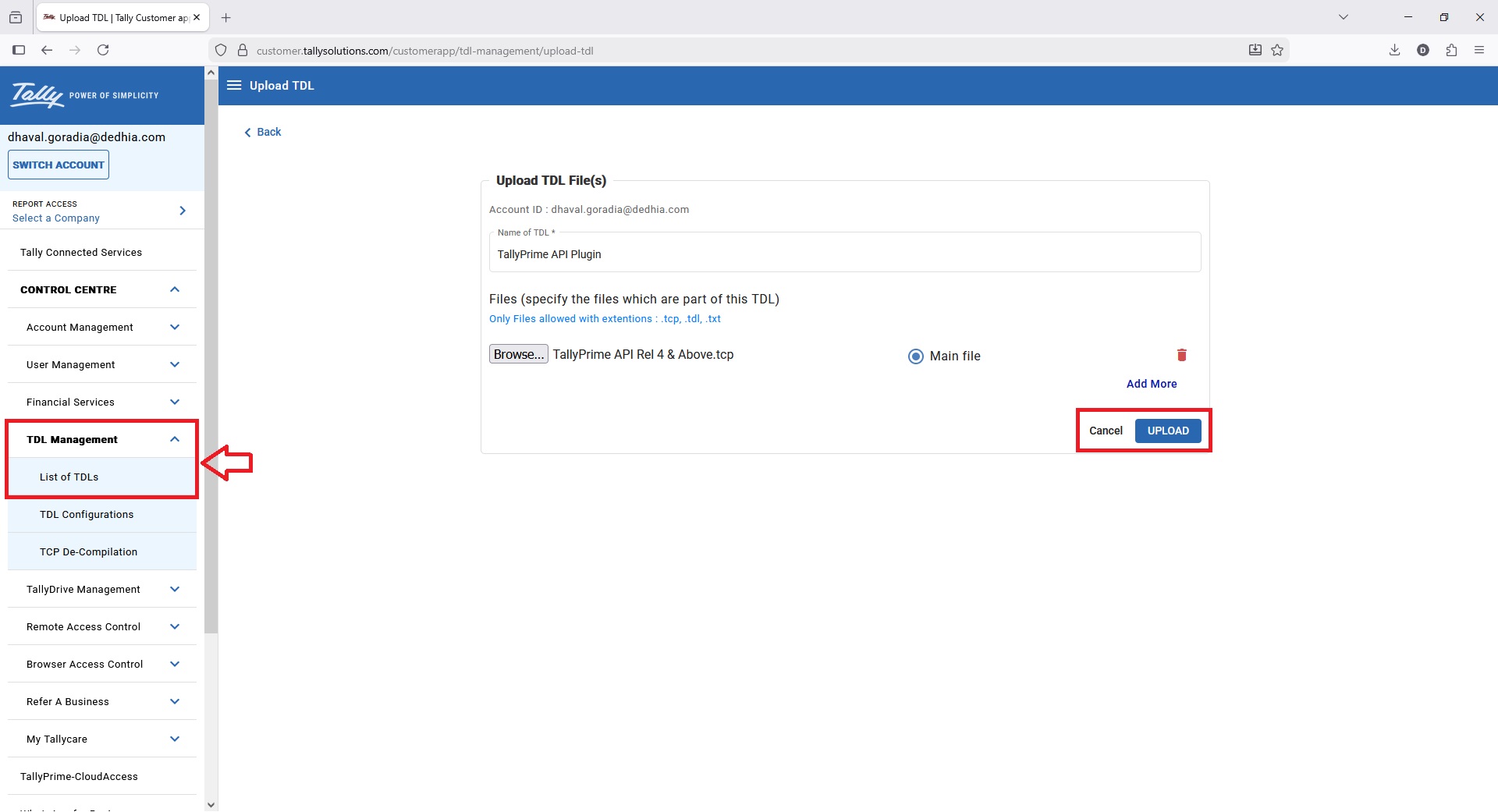
If you are using TallyPrime Gold Multi User version and TallyPrime being used on multiple systems then use “Account TDL” method to upload .tcp file via Tally.NET account.
Account TDL auto loads .tcp file on all the systems automatically.
Activating TallyPrime GET API Plugin
Make sure you are logged-in to the Tally company using Administrator ID & Password in which you wish to activate the API module
- Press F1: Help > TDL’s & Add-ons
- Press F6: Add-on Features

- You can now enable the GET API module for the selected company
- Free trial allows you to extract 450 records for each API module and valid for 15 days whichever is earlier
- Once you Subscribe API module you can extract unlimited data for the activated module valid for 12 Months or 1 month depending upon your subscription

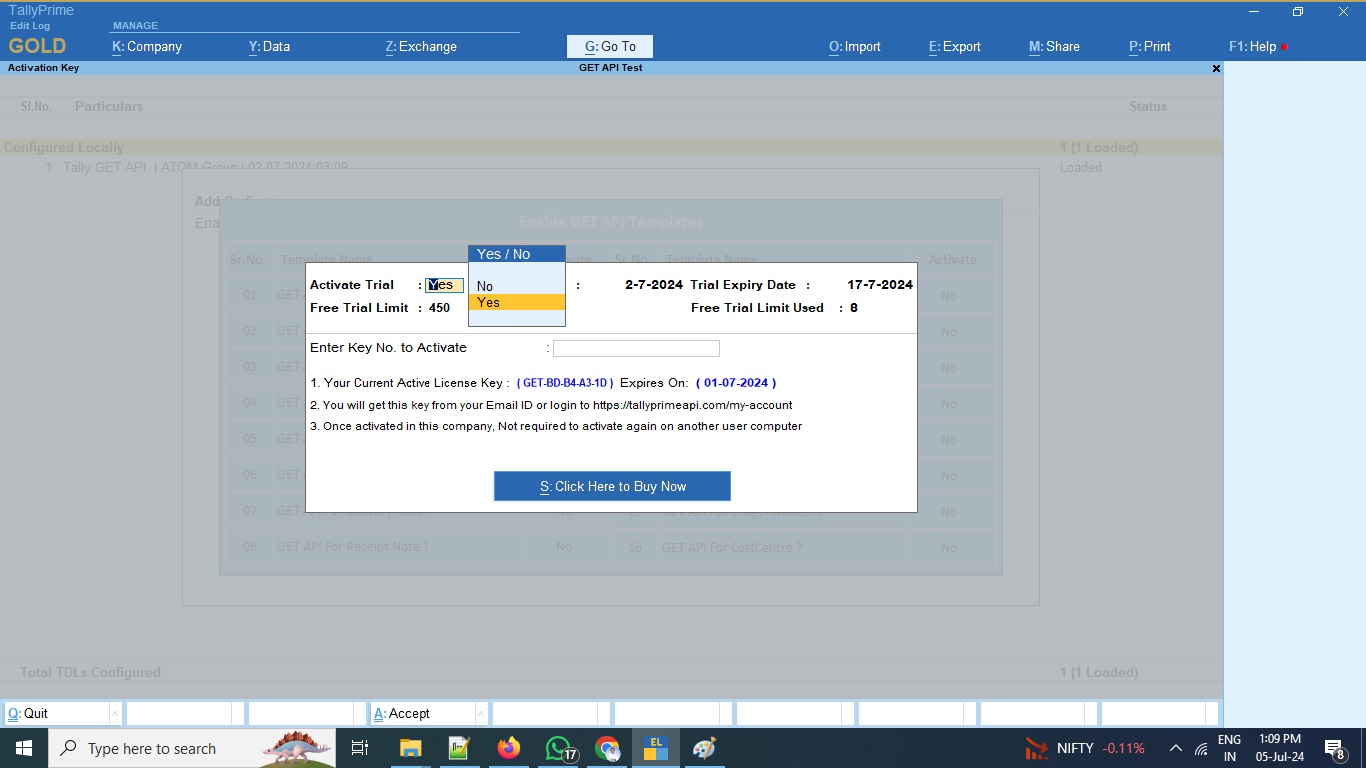
Please be noted that our API plugin free trial activation will need a valid TallyPrime license.
If you are not having TallyPrime license you can get 7 days free trial from here or you can buy Tallyprime monthly subscription from here
Assign Users
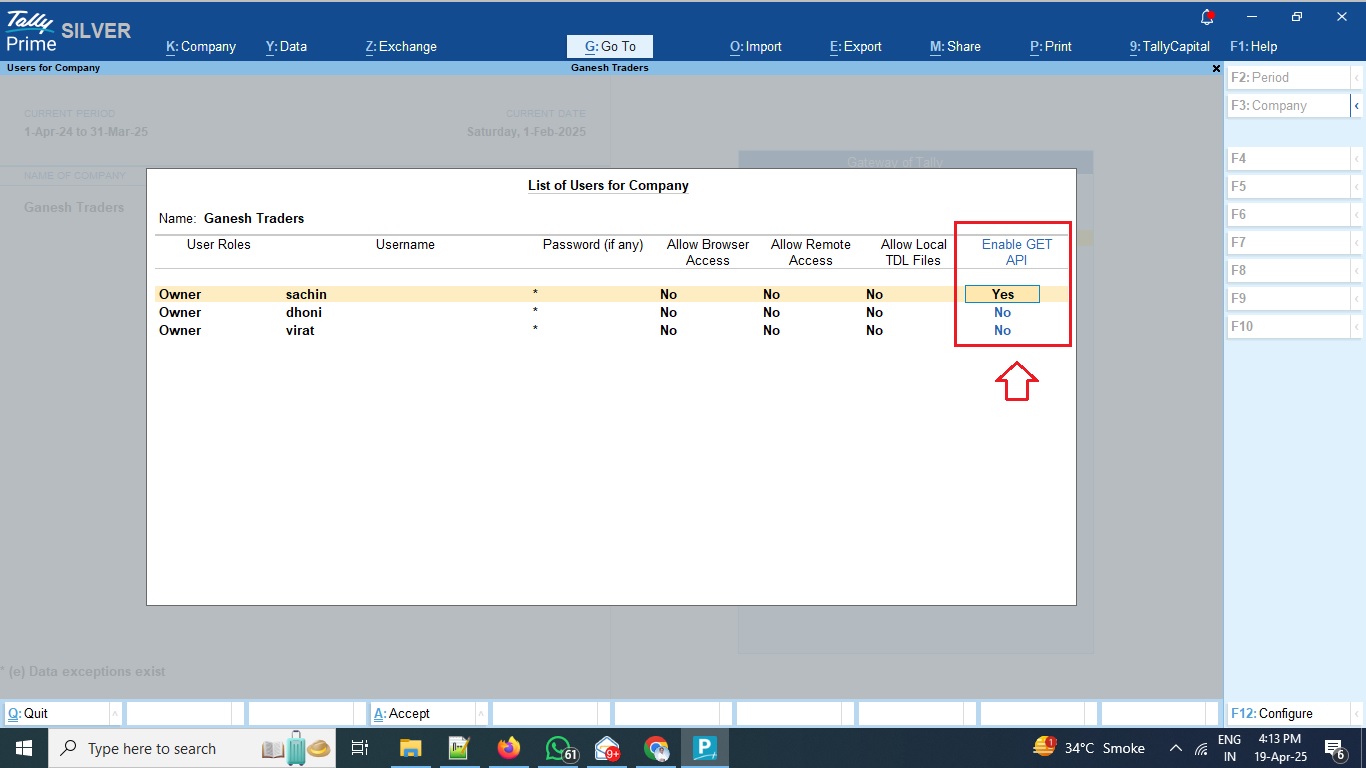
Administrator can assign users who can access GET API features as shown in below snapshot to prevent duplication of data uploads.
Go to Company > Users & Passwords
GET API Data Upload Settings
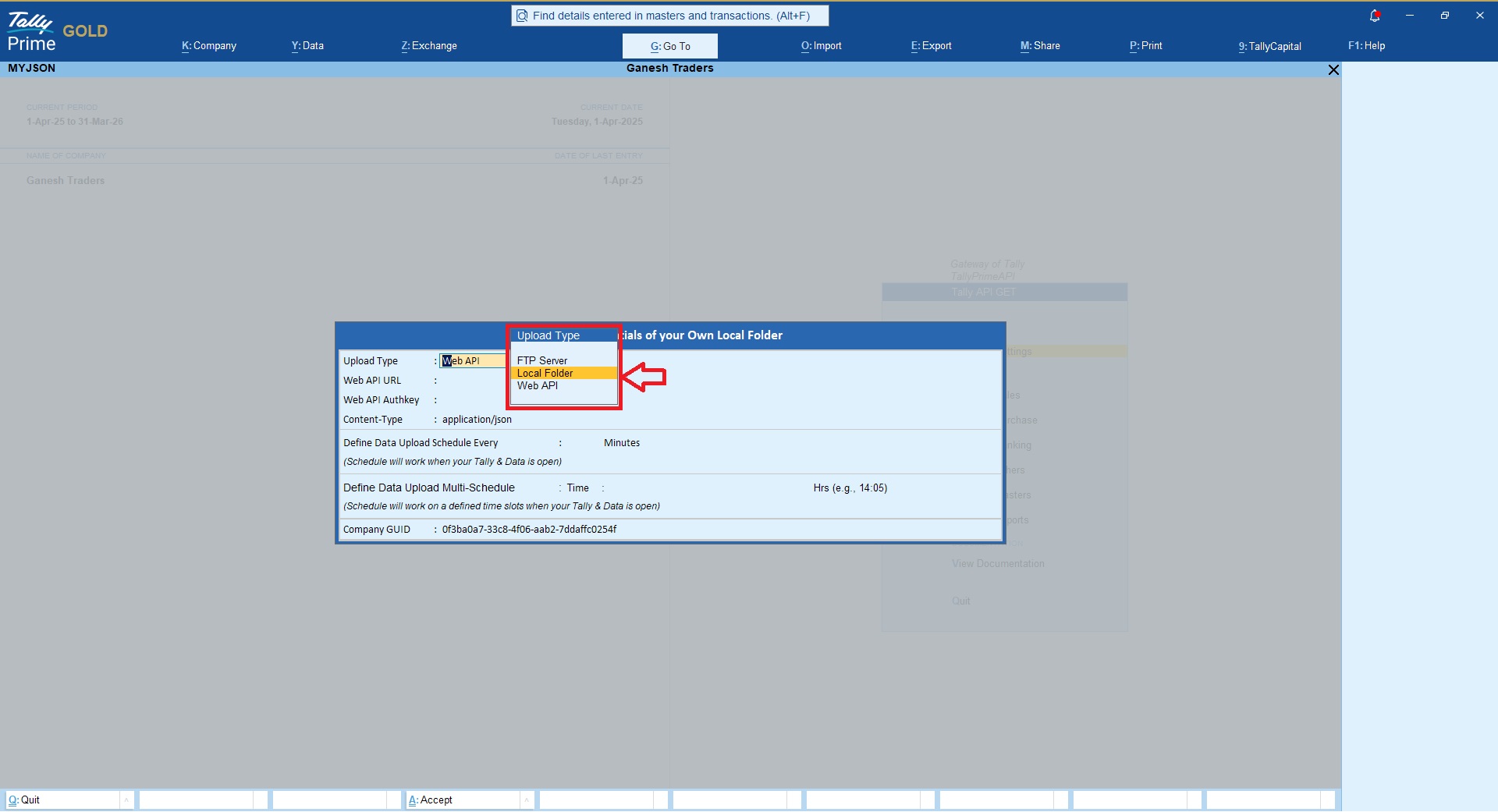
Data from TallyPrime can be uploaded in 3 ways using our API Plugin;
- Local Drive
- FTP Server
- Web API
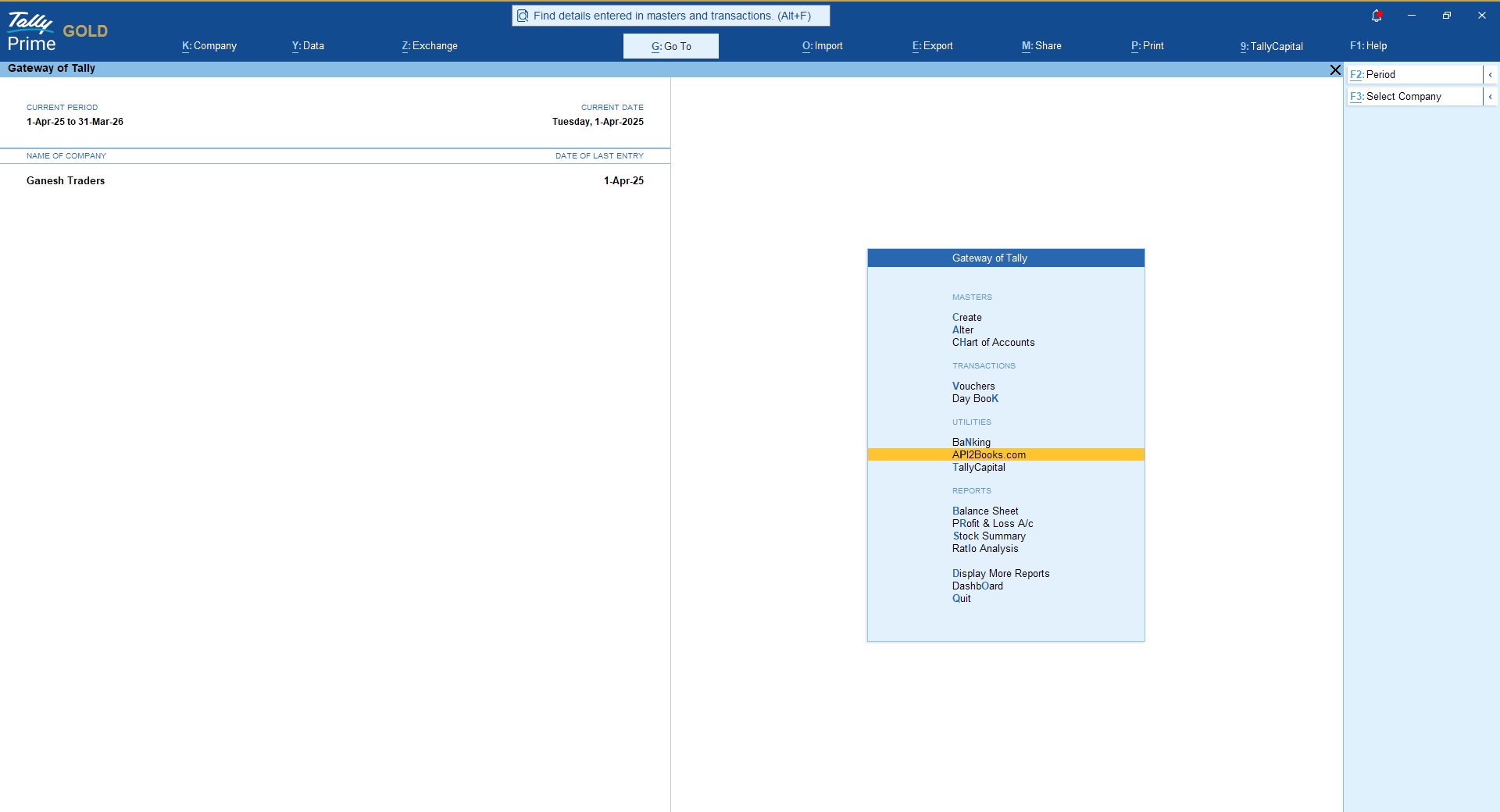
Once you have activated the TallyPrime GET API plugin, you will find new menu option on Gateway of Tally as API2Books.com as shown in below snapshot;
Data Upload via FTP Method
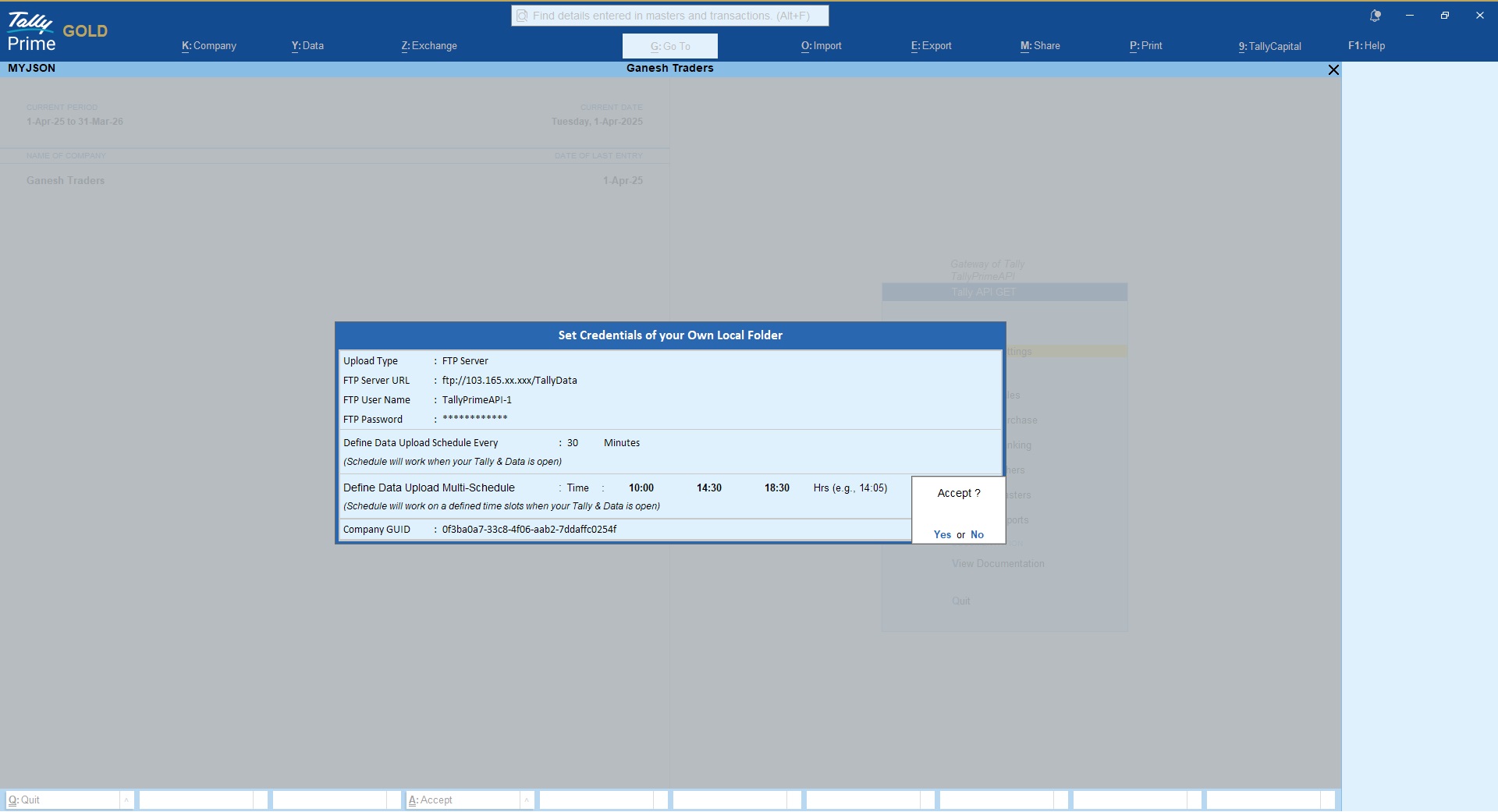
Follow the steps explained below to upload TallyPrime data over FTP server;
- Go to GET API Option > GET API Settings
- Choose option “FTP Server”
- Provide your FTP server details like FTP Server URL, FTP User Name, FTP Password
- Define data Sync/Upload schedule to upload TallyPrime data automatically on defined schedule without user intervention.
- Make sure your TallyPrime and Data is open else sync will not perform
Data Upload via Local method
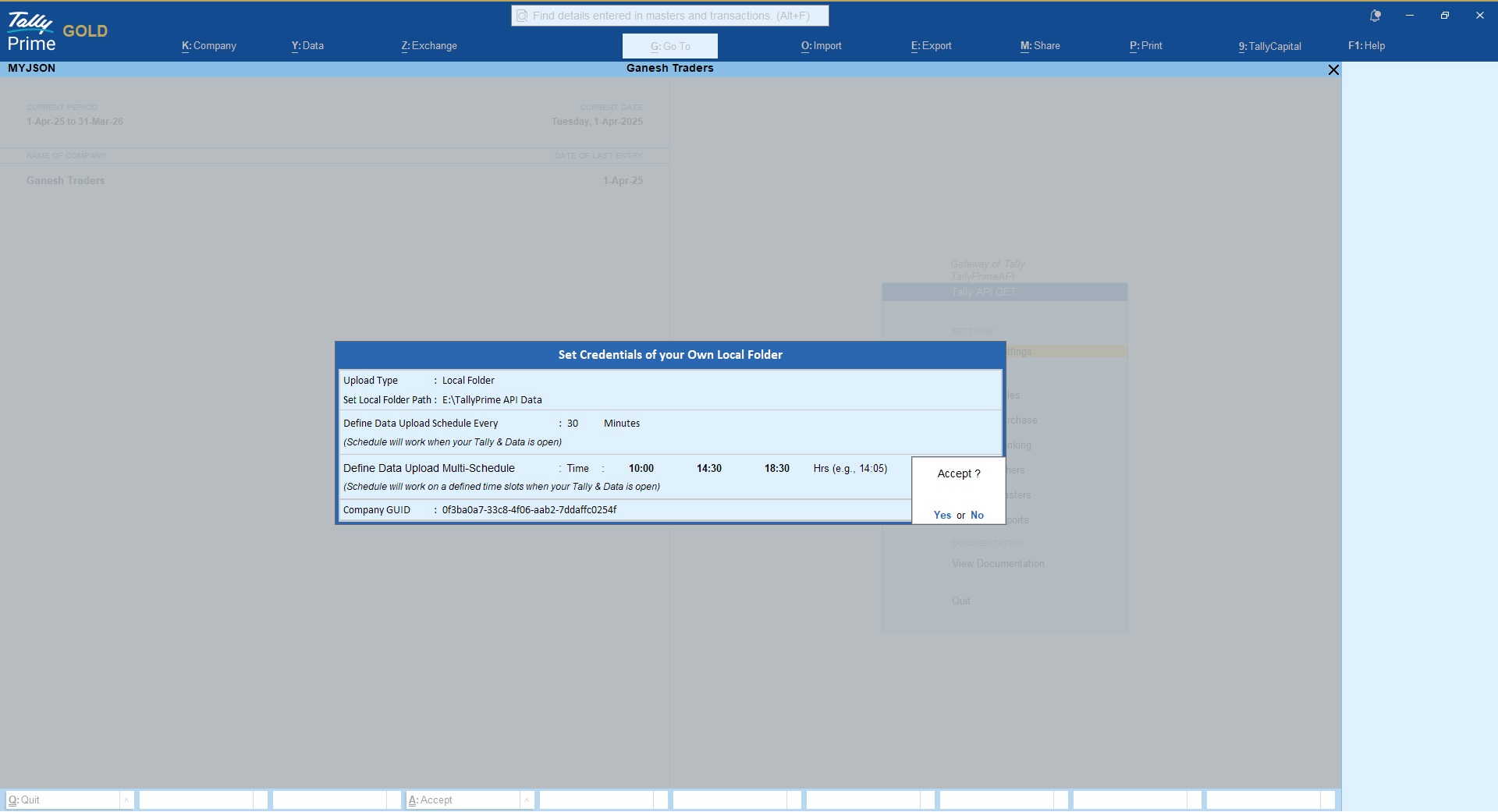
- If you are planning to extract data locally then you may define local directory path in which you want to extract Tally data as shown in below snapshot
Data Upload via WEB API Method
If you are planning to integrate your application/database directly with TallyPrime then you may achieve the same using Web API method.
This method will insert TallyPrime data directly to your application/database.
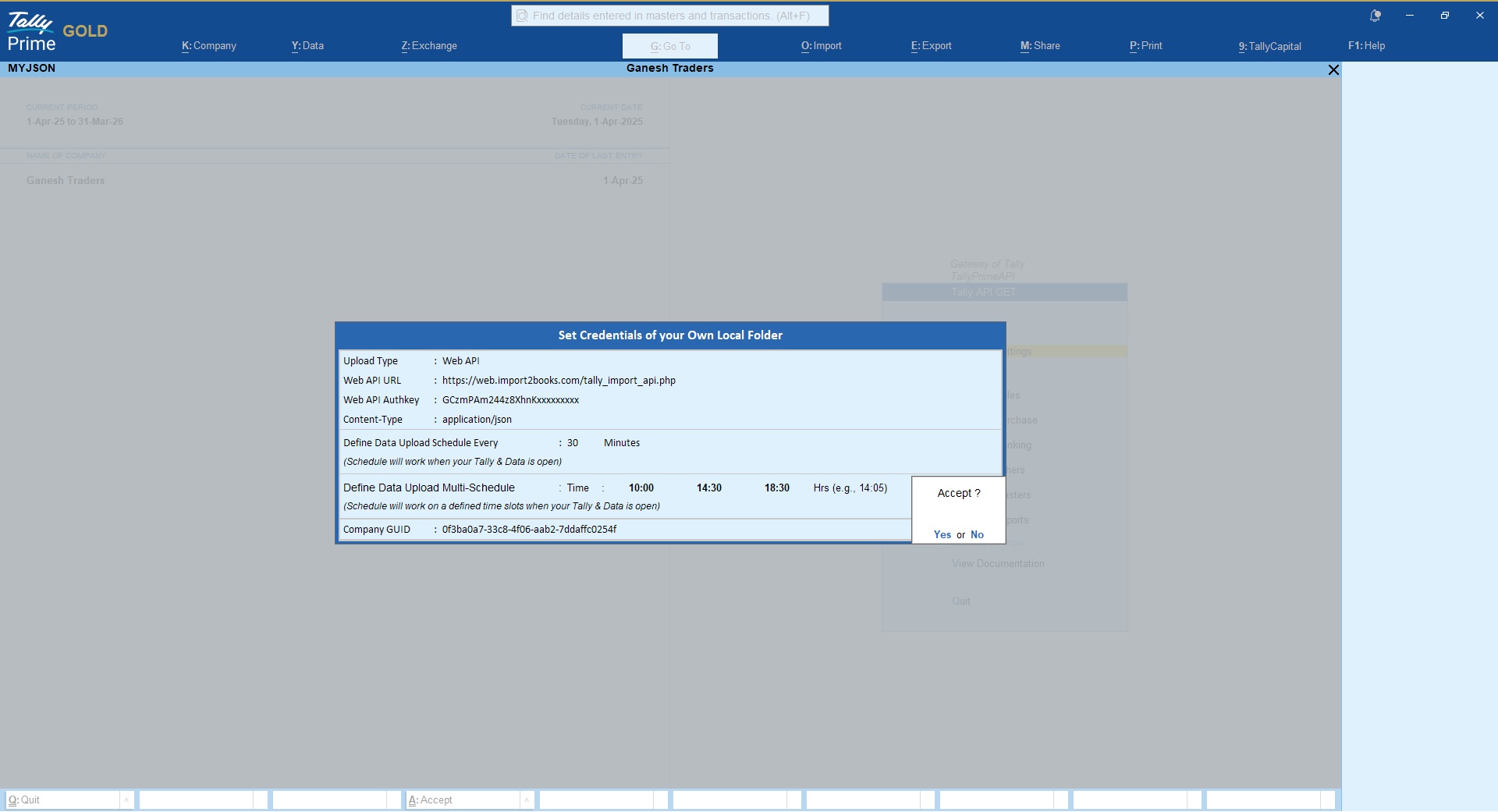
Please refer settings below to upload TallyPrime data over Web API;
TallyPrime GET API Data Upload Events
Our API plugin supports multiple trigger events to GET TallyPrime data either on your FTP server or in your local directory or on Web API.
1. Data Upload on Save (Real-time)
If you wish to upload vouchers instantly after they have created/modified in TallyPrime then you can enabled the option from the voucher type alter mode as shown in below snapshot;

2. Manual Upload Single Voucher (On-Demand)
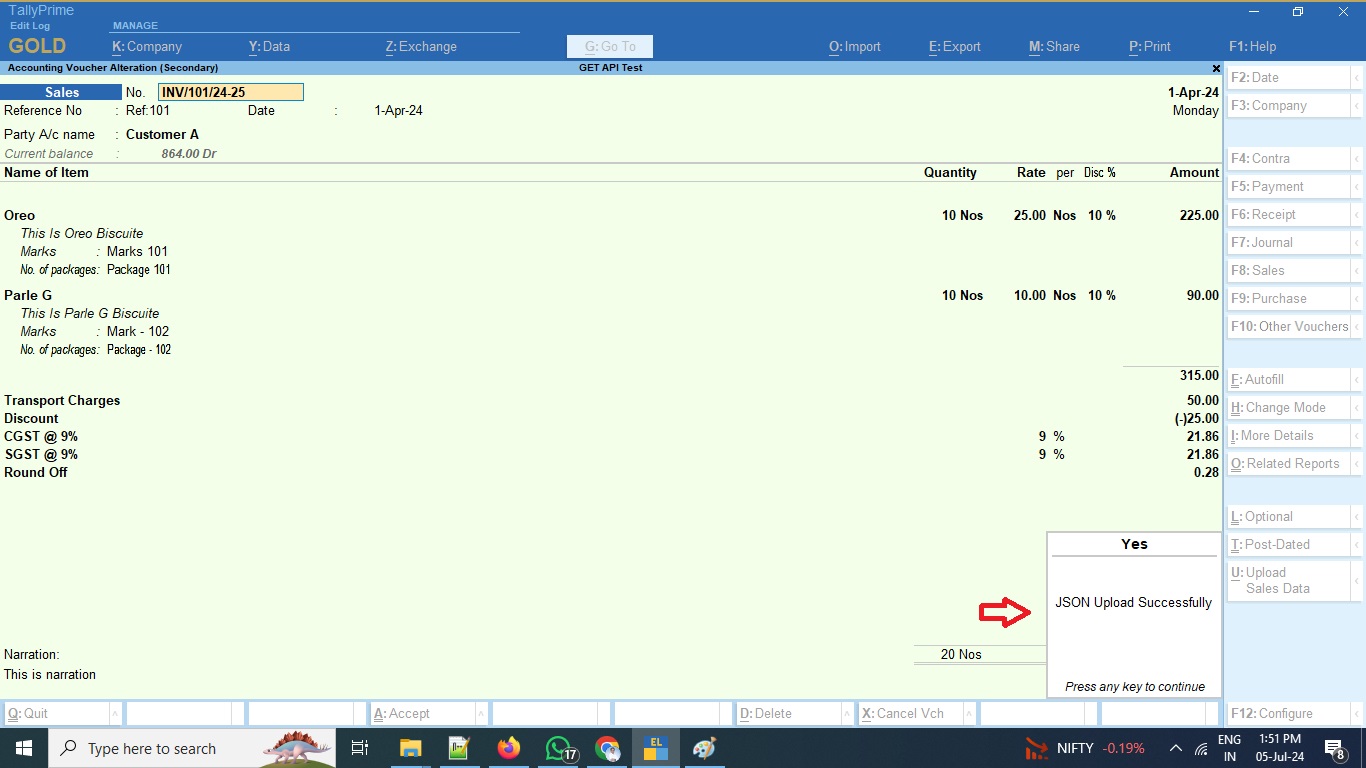
If you wish to upload voucher manually then you can do so by clicking on the “Upload Data” button given inside the voucher

3. Upload Bulk Vouchers (On-Demand)
If you wish to upload multiple/bulk vouchers then you can do so by selecting multiple vouchers and then click on the button Upload


4. Scheduled Interval
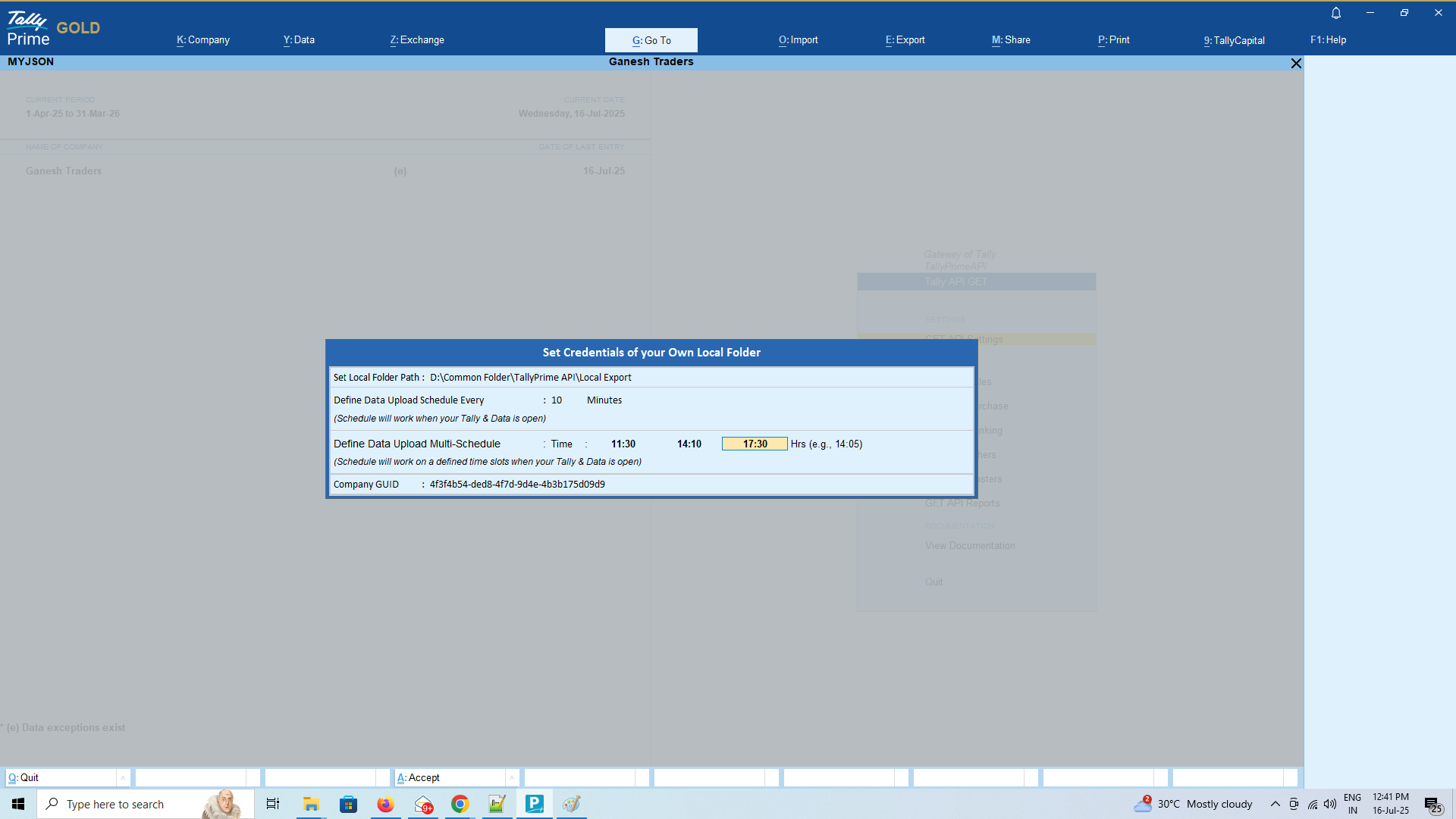
Use this method if you wants to auto upload Tally data on scheduled intervals.
If you are planning to use this option, Tally user has to make sure TallyPrime is running and company data is kept open to perform the schedule event.
Data Format & Integration
Data from TallyPrime will be extracted in structured JSON format and that can be used for integration with your database like MySQL, MSSQL, Mongodb, etc
Using our TallyPrime GET API plugin you can use Tally data to build MIS reports using PowerBI, Tableau and similar BI tools, you can integrate Tally data with your existing ERP & CRM, you can use Tally data to build your mobile apps to display important financial information’s.
Support
If you need assistance on a query not addressed in above documentation, you may reach us on support@api2books.com
Download Latest TallyPrime GET & POST API Plugin
TallyPrime GET API FAQ
-
What is TallyPrime GET API?
- TallyPrime GET API is an TDL/Plugin that helps to extract/pull required data from TallyPrime software to integrate with third-party applications.
-
Where can I extract TallyPrime data using GET API plugin?
- You can either extract TallyPrime data on your local computer by defining a local computer path OR you can publish TallyPrime data on your FTP/Web server by defining your FTP/Web server credentials in the plugin settings
-
In which format data will be extracted using TallyPrime GET API Plugin?
- TallyPrime GET API plugin will extract/pull data in JSON format
-
Can I get Free Trial of TallyPrime GET API plugin?
- Yes, you can download 15 days free trial plugin from our website
-
How can I purchase TallyPrime GET API Plugin?
- You can purchase any of our TallyPrime GET API plugin module either Monthly or Yearly subscription basis directly from our website only and get your unique plugin activation key instantly
-
Will my TallyPrime Data is secured?
- Yes…you are the owner of your TallyPrime data and you only can define where you want to extract/pull TallyPrime data. It can’t be access by us in any circumstances.
-
How is the cost of TallyPrime GET API?
- Please visit our pricing section here https://api2books.com/pricing/#get_api_pricing for detailed pricing options
- You may subscribe the API modules based on your requirements
-
Once subscribed can I use it for unlimited companies?
- Yes….you can use the GET API plugin for unlimited companies running on same Tally License number that has been provided during purchase
-
Is there any limitations on data extract?
- If you are using our free trial then you can extract 450 records for each API modules
- If you are our Monthly or Yearly paid user then there will be no limitations on data extract
-
Can I use it on any TallyPrime License?
- Free trial will work on any Tally License number
- Paid version allowed to use only on the Tally License number provided during purchase
- If you have multiple Tally Licenses then you will have to subscribe separately for each unique Tally Licenses
-
Does it supports multi user?
- Yes…..it works on multi user environment using the same Tally License
- You no need to subscribe separately for each users